How to Add a New Role
Purpose
The Role Management feature allows administrators to create different roles and control the permissions assigned to each role. This helps ensure that users can access only the features relevant to their responsibilities.
Navigation
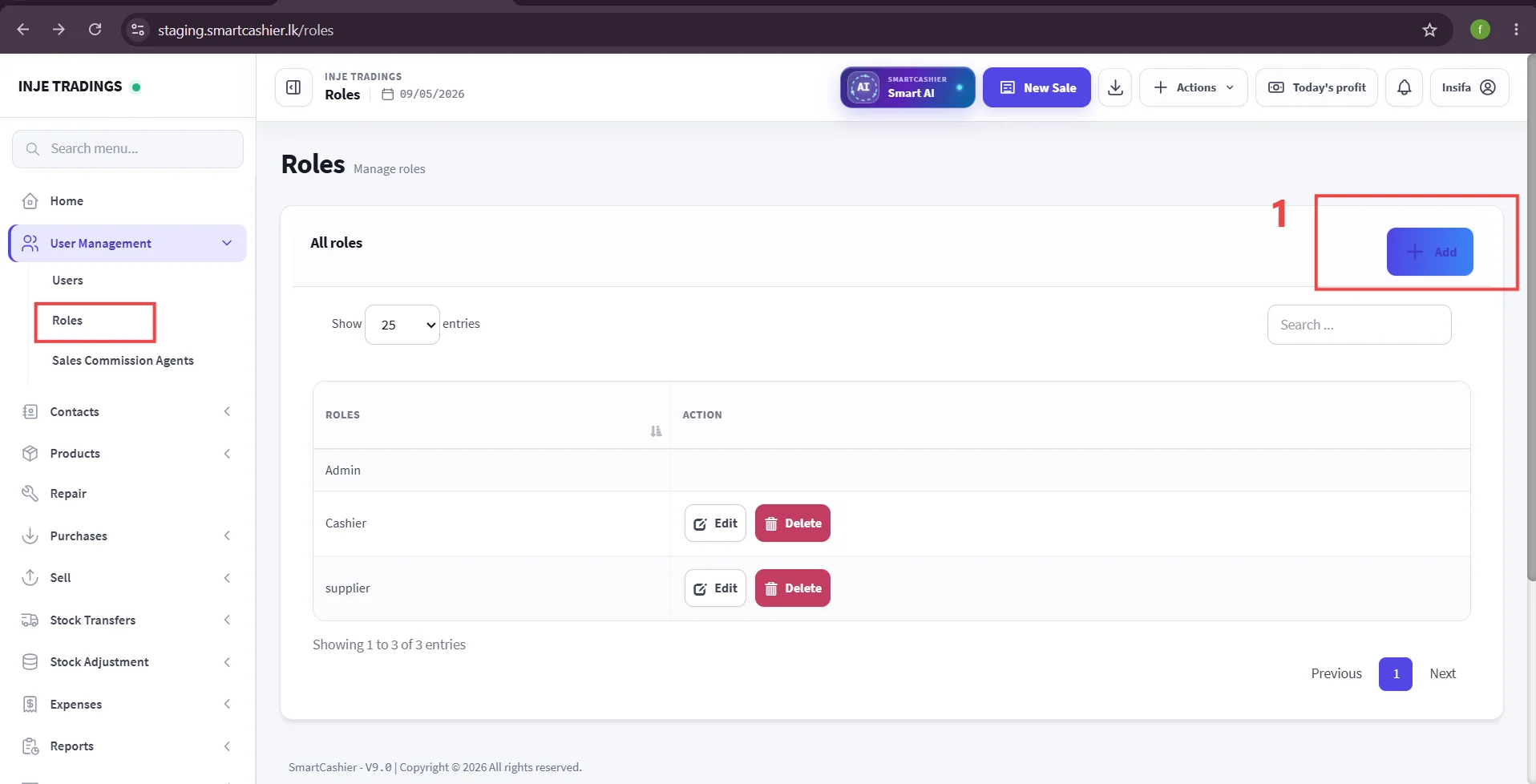
Go to:
User Management → Roles → Add Role
Follow the steps below to create a new role:
Step 1:Click the Add Role button.
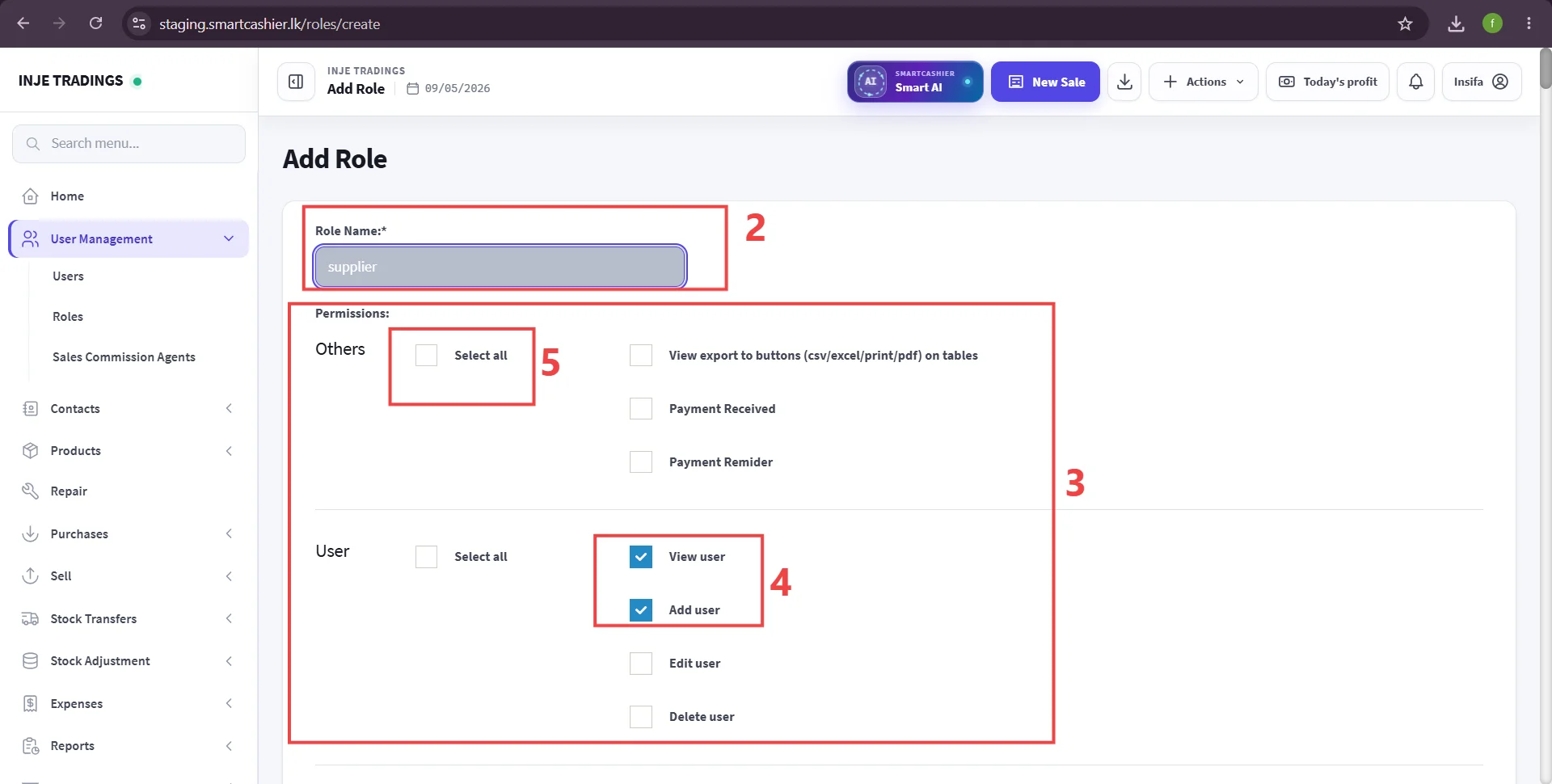
Step 2:Enter a suitable name in the Role Name field.
Step 3:Under the Permissions section, select the permissions required for the role.
Step 4:Individual permissions can be selected based on the responsibilities of the role.
Step 5:Use the Select All option if all permissions within a section need to be granted.
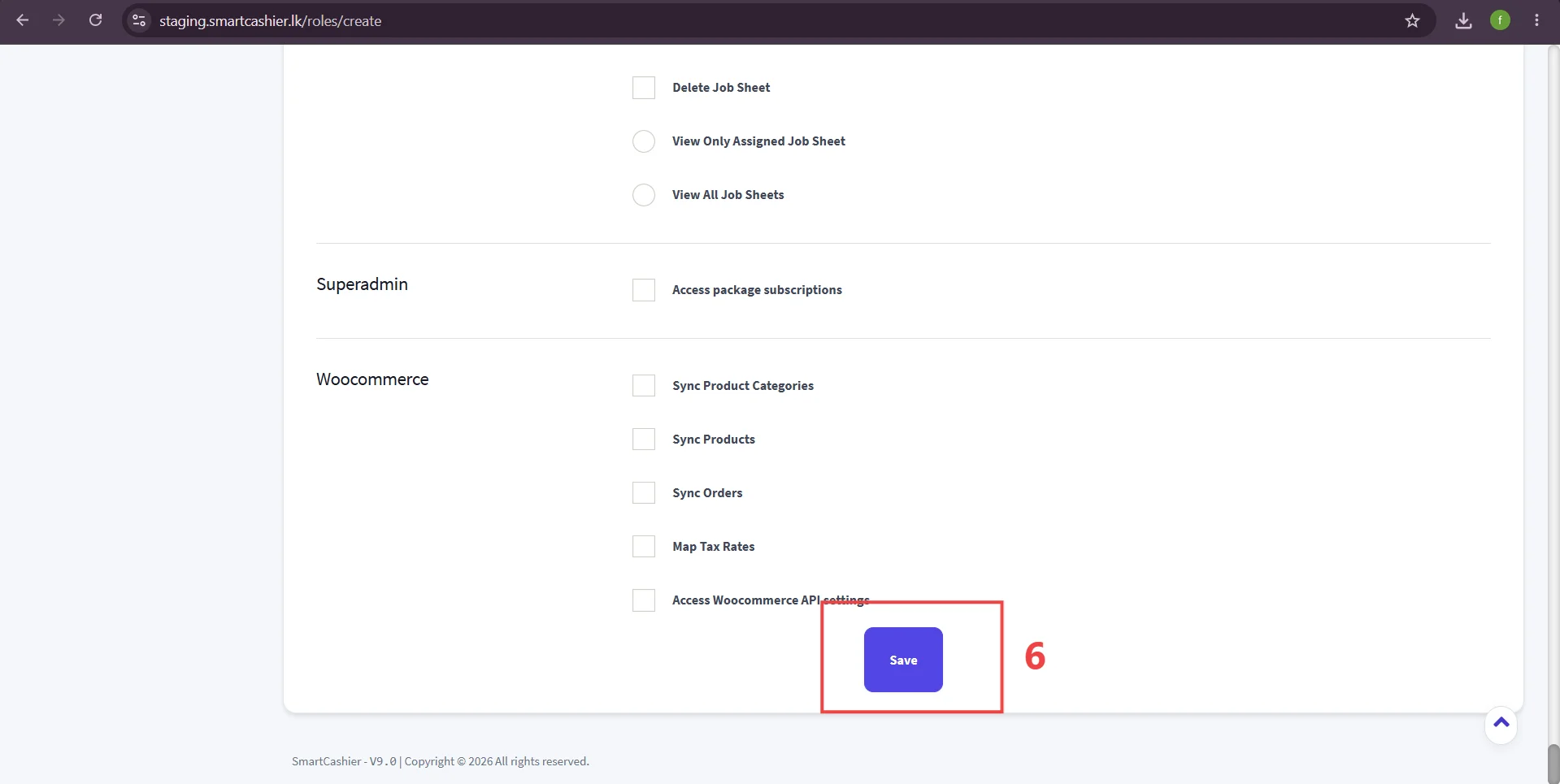
Step 6:After selecting the required permissions, click Save to create the new role successfully.
Example
For example, when creating a Cashier role, only the permissions required for cashier-related tasks can be selected. Administrative permissions, such as managing users, can be restricted if they are not required.
Important
Assign only the permissions required for the role to ensure proper access control and system security.