Purpose
Use Sales Return to return selected products or all products from a previous sale and refund the customer.
Prerequisite: original sale’s sales invoice number or QR code.
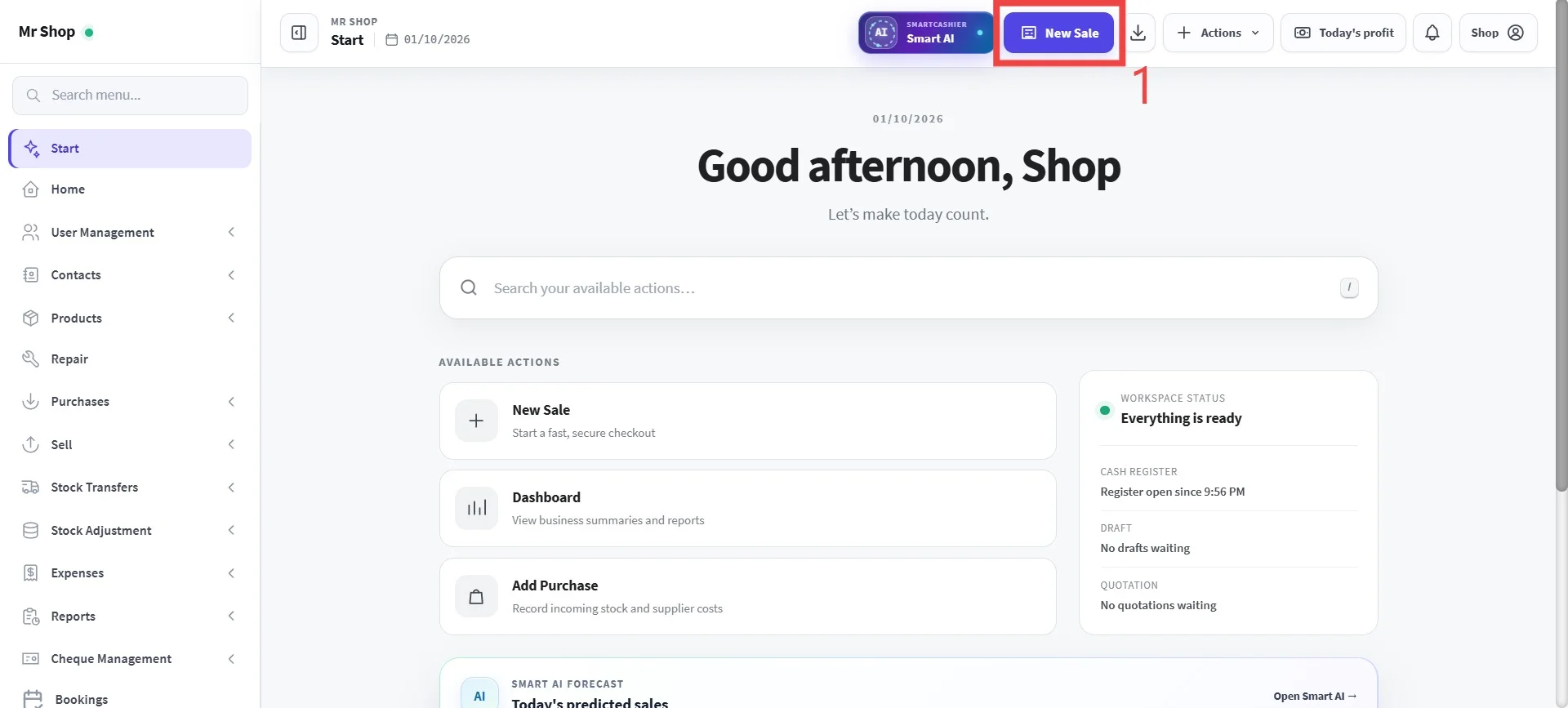
Step 1: Click New sale on the header to go to POS Terminal.
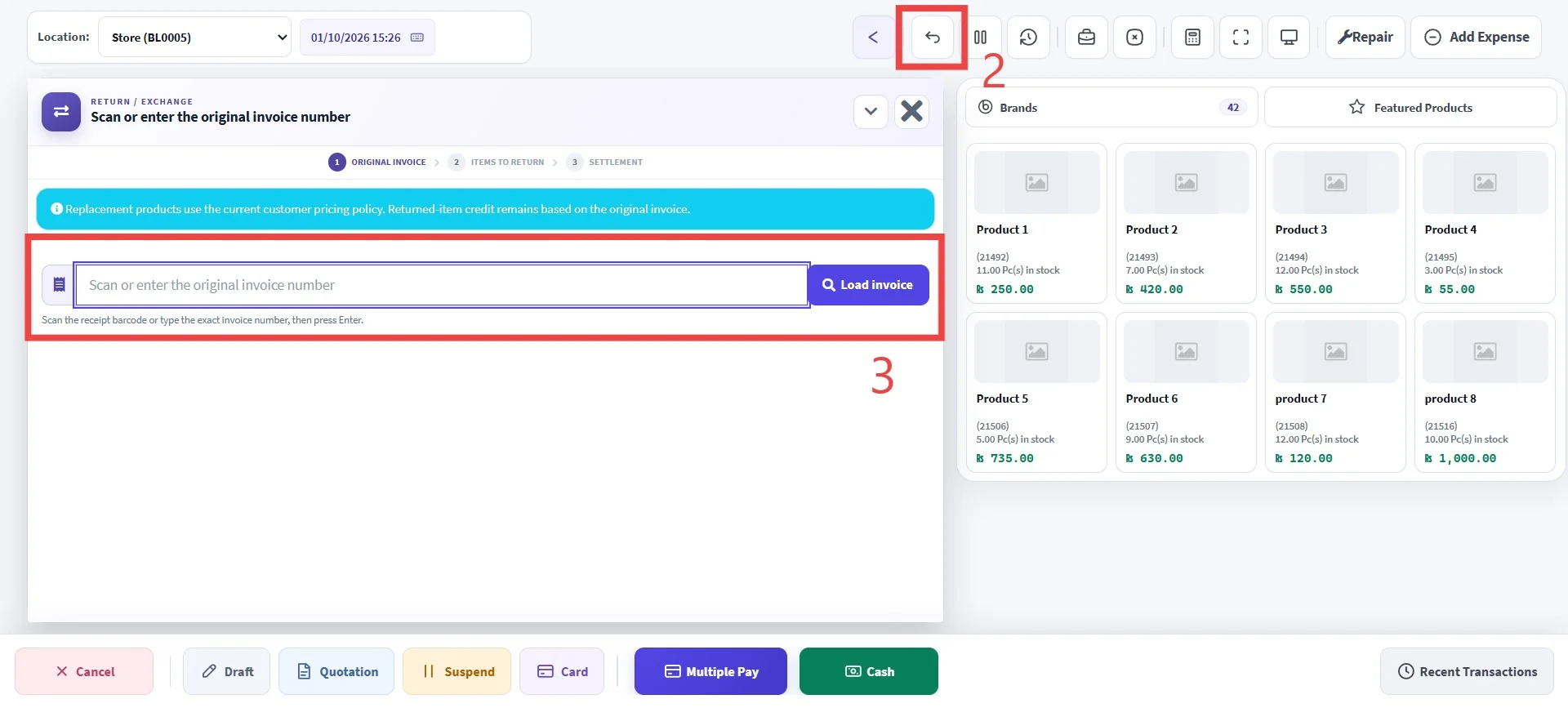
Step 2: Click the return button.
Step 3: Enter the sales invoice number or scan the QR code of the original sale.
The details of the original sale will be displayed.
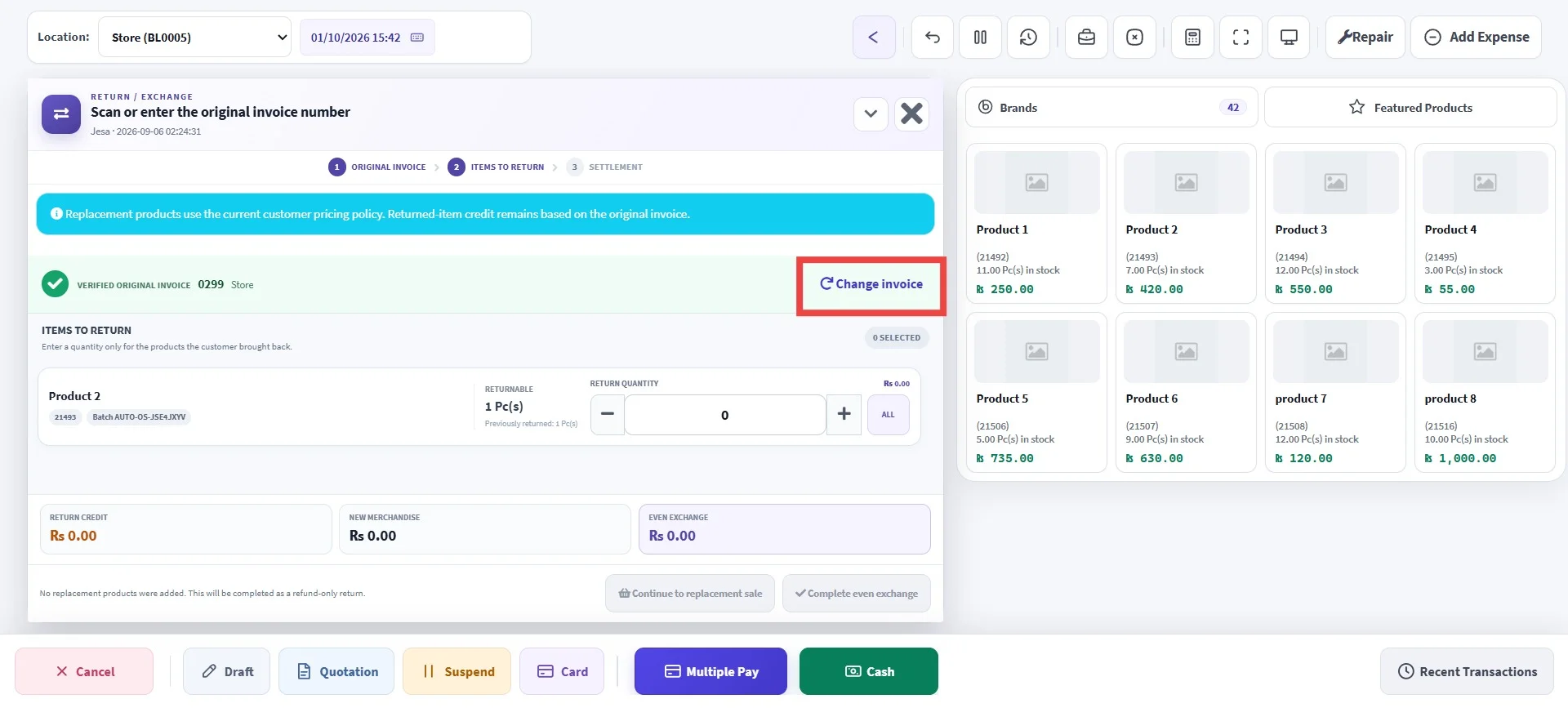
Important
Make sure the correct invoice is open before starting the return. If not, click 'Change Invoice' to open the correct one.
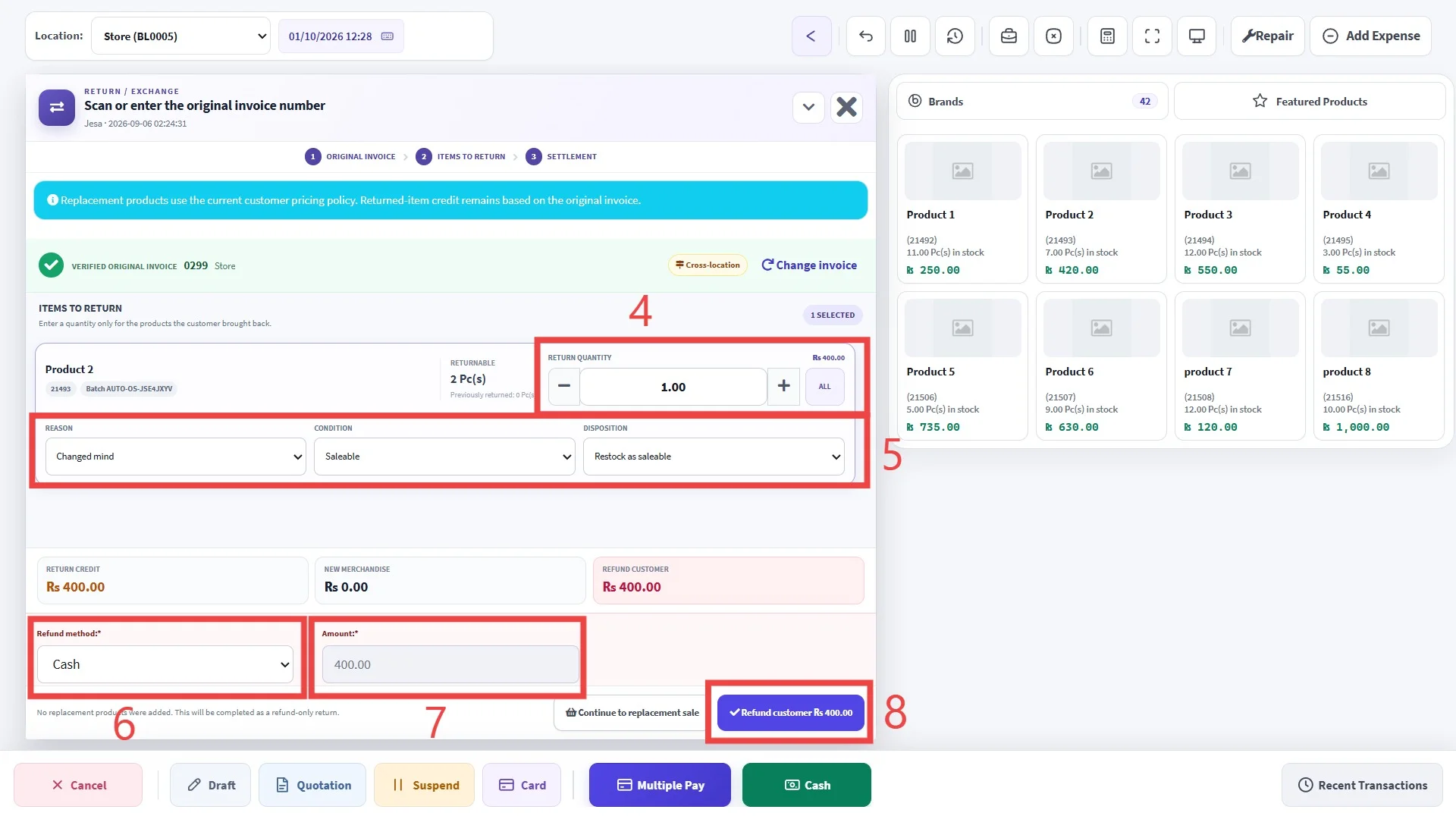
Step 4: select the quantity of returned items.
Under Return Quantity, use the + or - buttons (or type the quantity) to specify how many units are being returned.
Step 5: Choose the reason, condition, disposition for the return.
Step 6: Select the payment method for the refund.
Step 7: Enter the payment amount.
Step 8: Click Refund Customer.
Important
Verify the returned items, quantity, refund amount, and payment method before clicking Refund Customer.