Purpose
To create a new user account by entering the required details
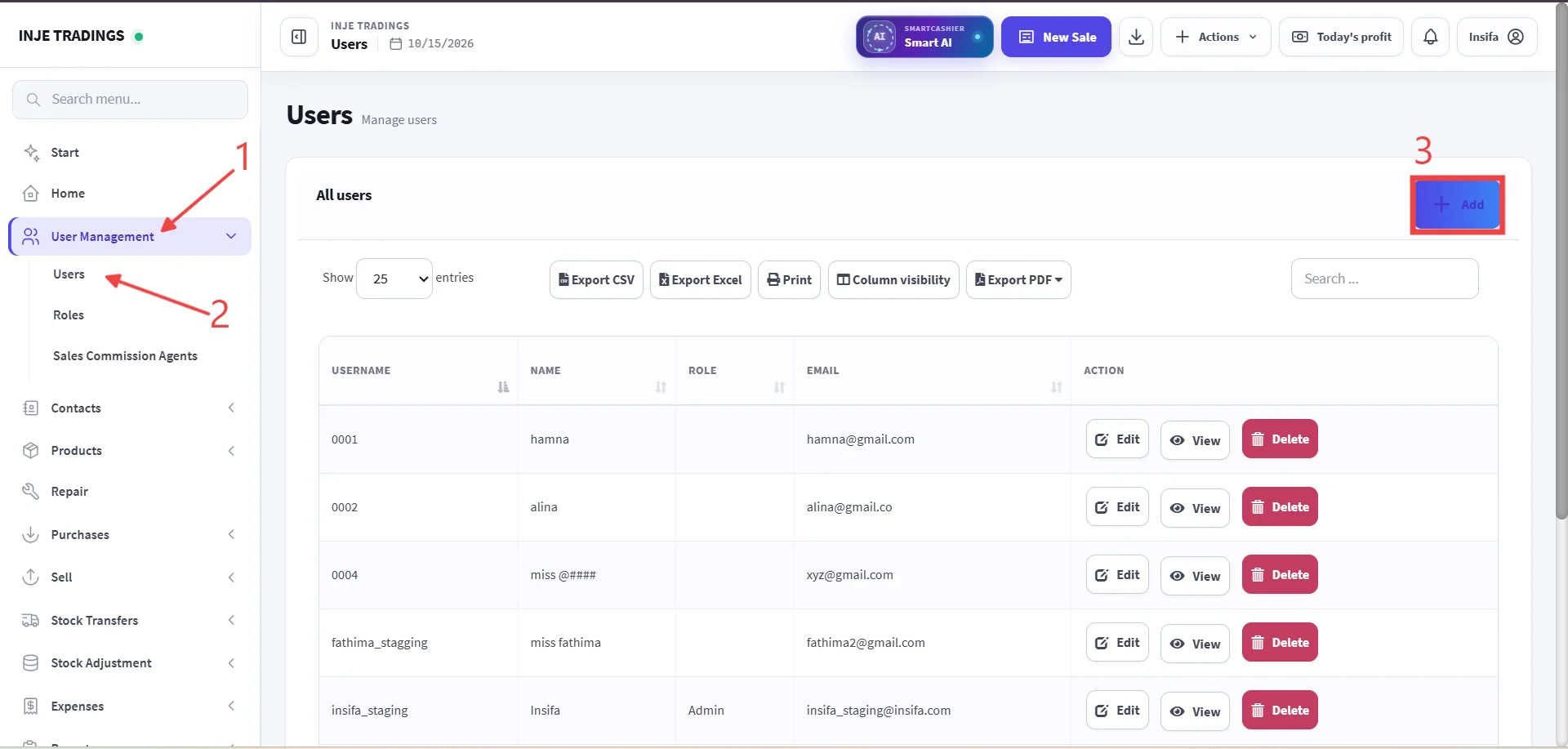
Step 1: Go to User Management.
Step 2: Click Users.
Step 3: Click + Add.
Important
Check the existing user list before creating a new user to avoid duplicate accounts.
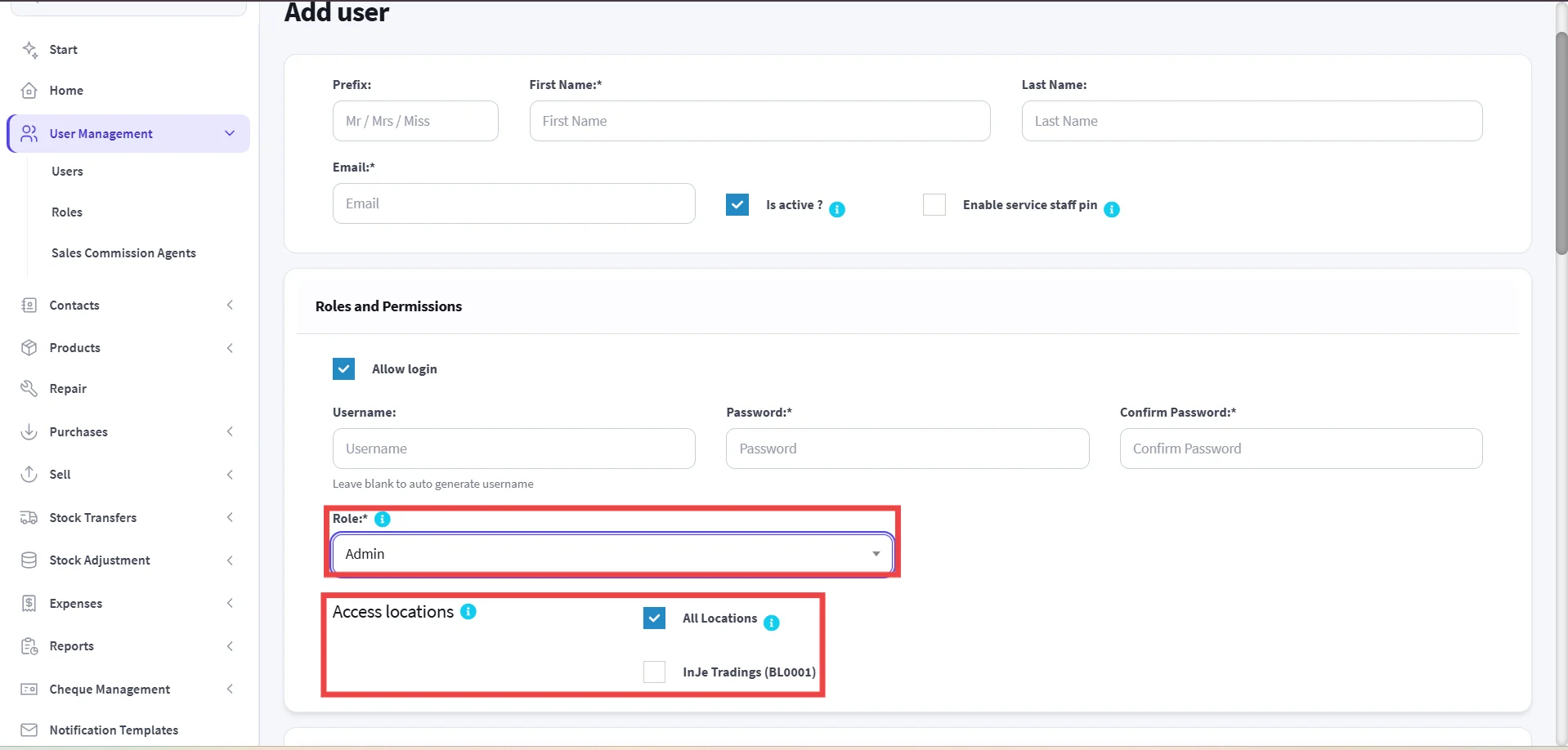
Step 4: Enter User Information
Enter the required information for the new user.
Important
Carefully select the appropriate role, as all permissions assigned to that role will be granted to the user. Also, the user will only be able to perform actions within the selected business location.
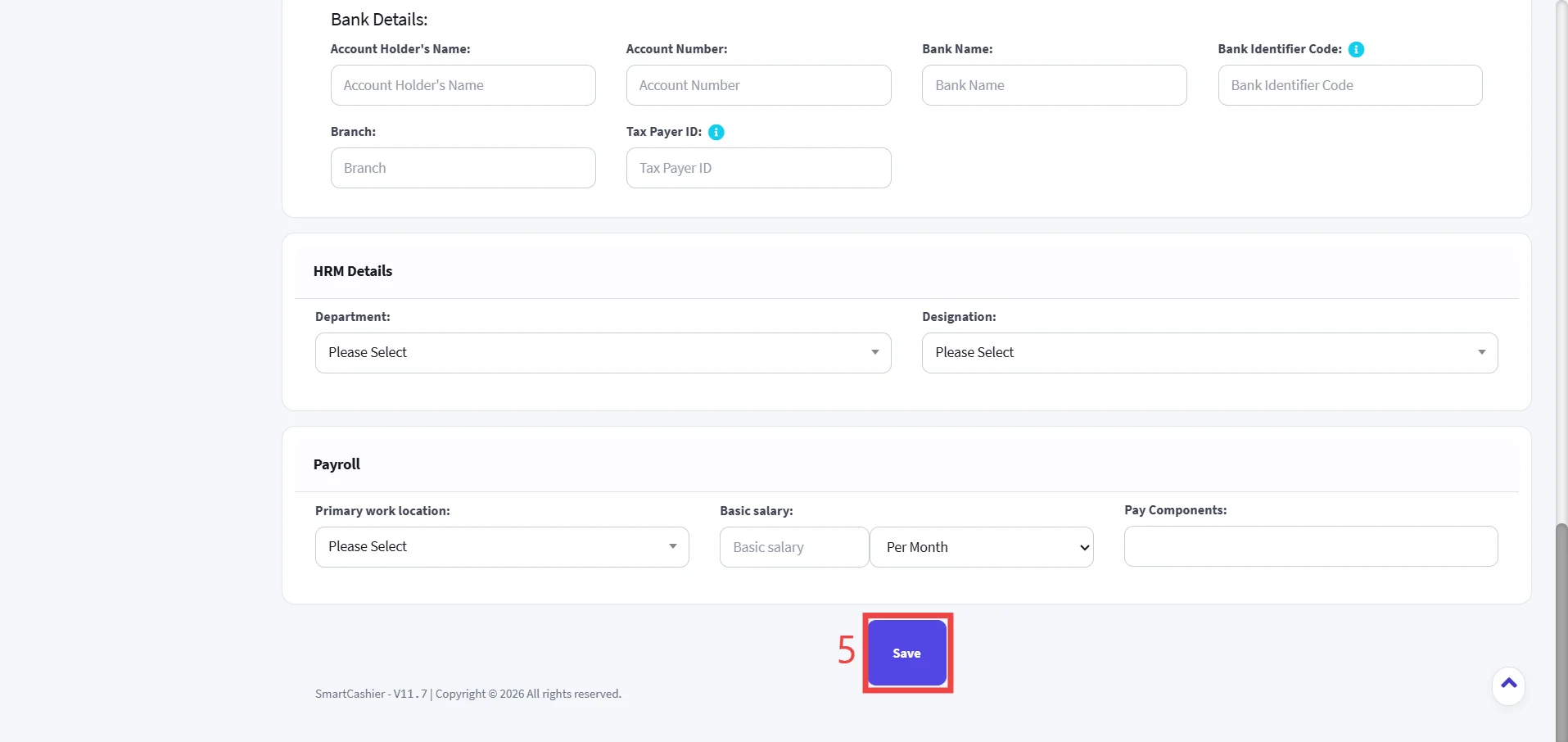
Step 5: Click Save.