Purpose
To import bulk contacts into Smart Cashier using a CSV template.
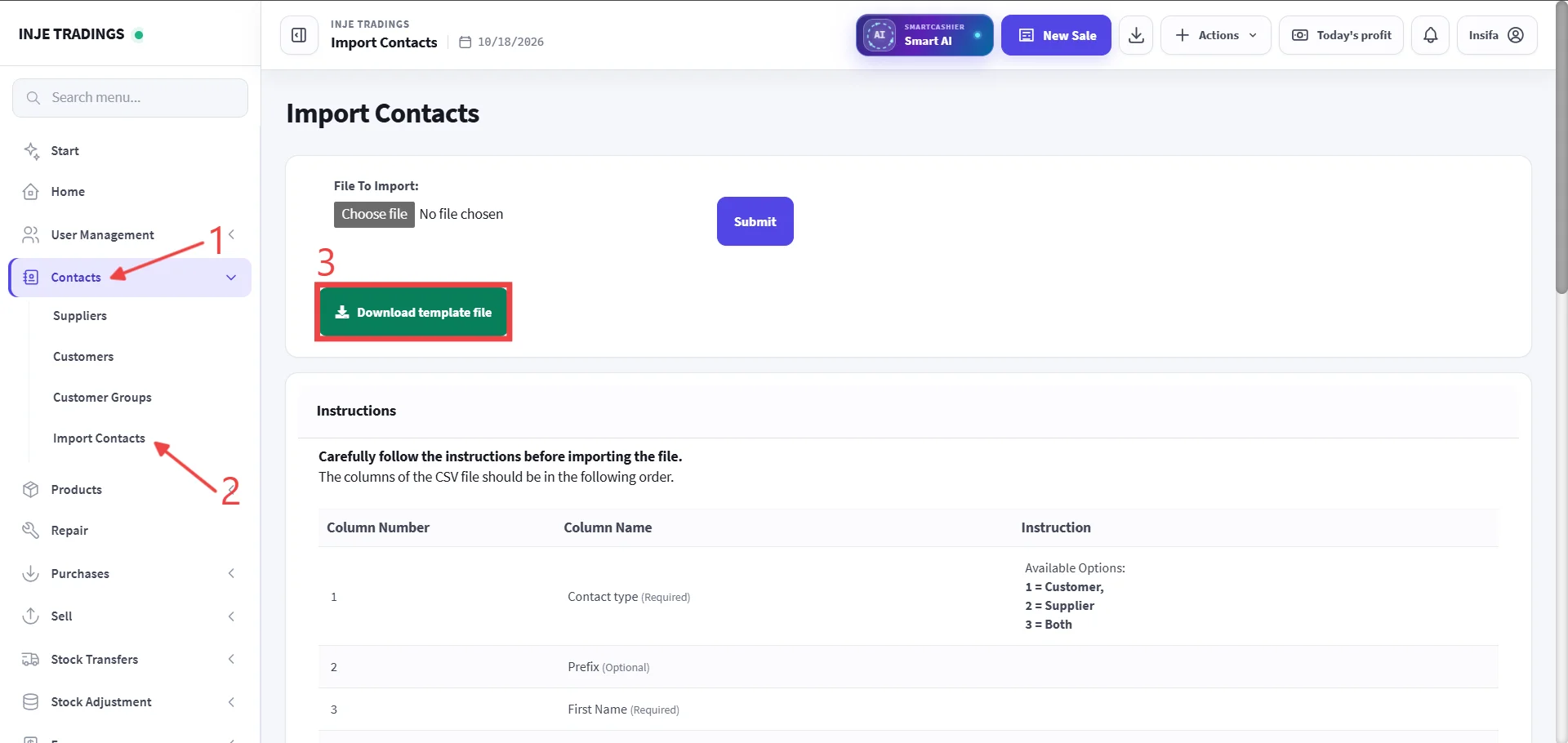
Step 1: Go to Contacts.
Step 2: Select import contacts.
Step 3: Download template file.
Warning
Do not delete, rename, or reorder any column headers in the downloaded CSV template file, doing that will cause the import process to fail.
Step 4: Prepare Your Data in the Template.
-
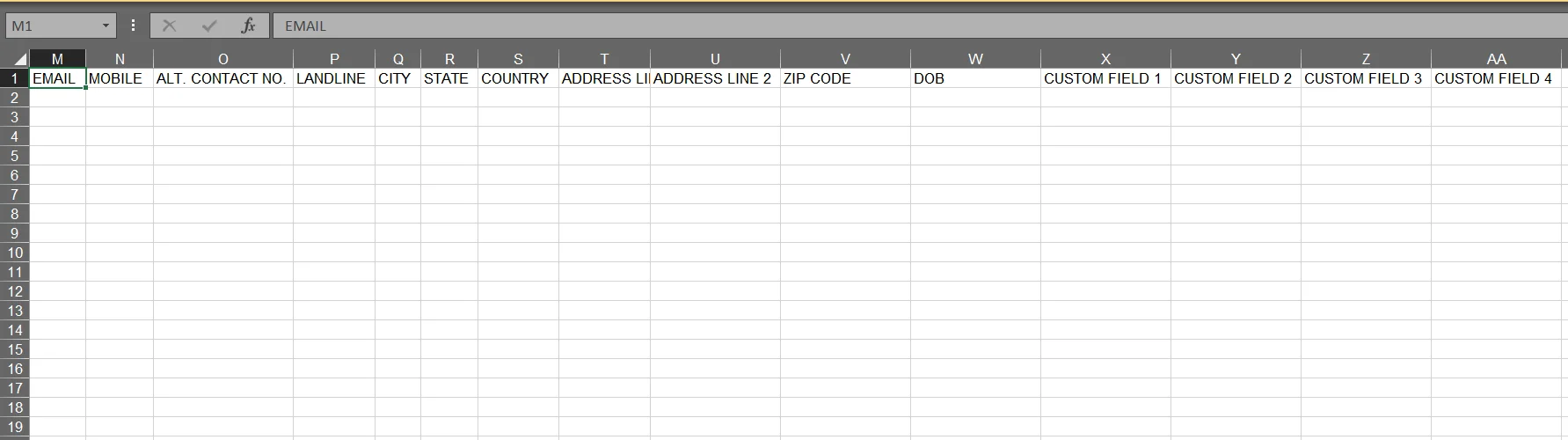
Fill in your contact details strictly following the column headers
-
Always check required fields before uploading to prevent partial or failed data imports.
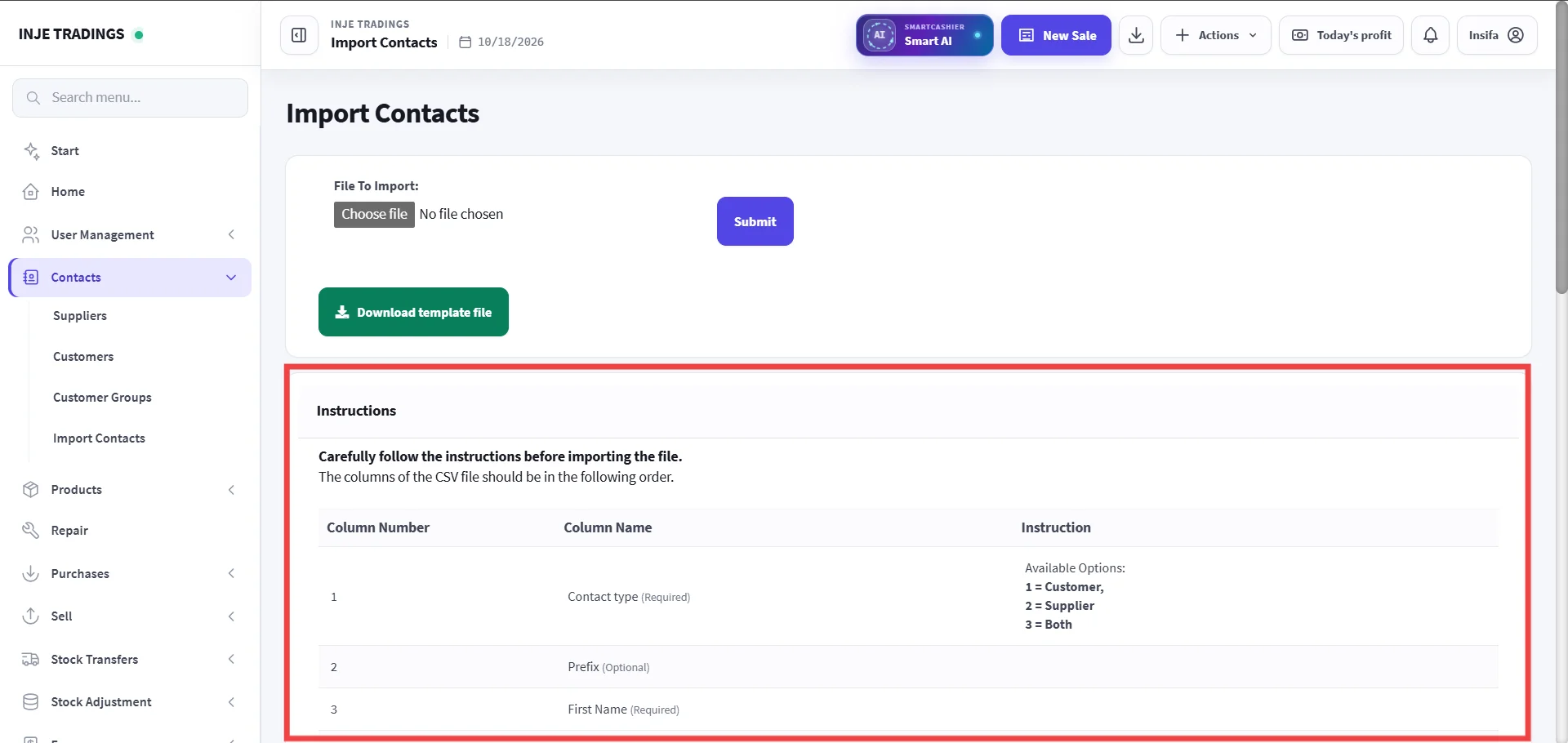
- Refer to the Instructions section at the bottom of the Smart Cashier Import Contacts page to identify the required column values (e.g., Contact Type: 1 = Customer, 2 = Supplier, 3 = Both).
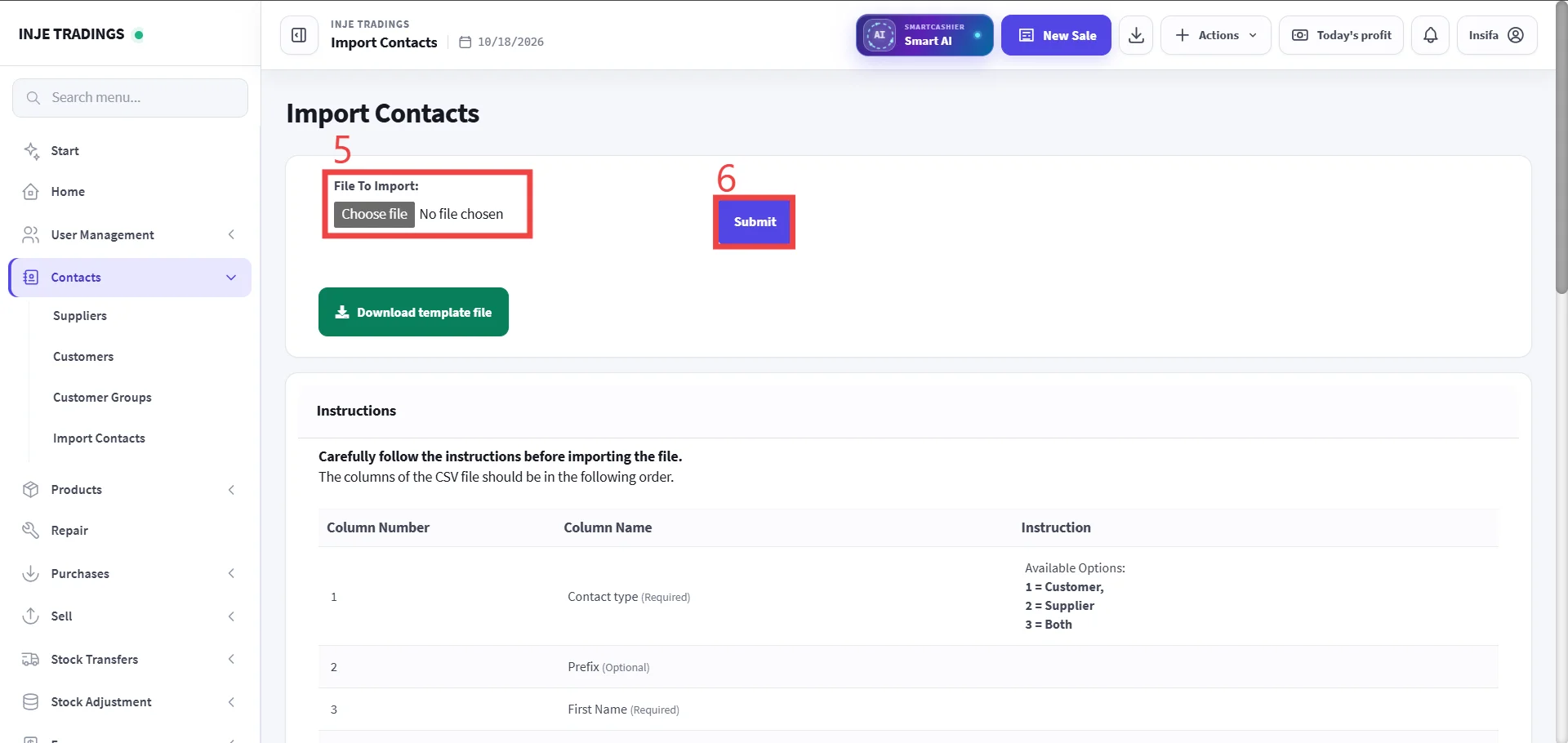
Step 5: Upload the Completed File.
Step 6: Click Submit.