Purpose
To guide users on how to change the selling price of products in the POS system by selecting an appropriate reason for the price adjustment.
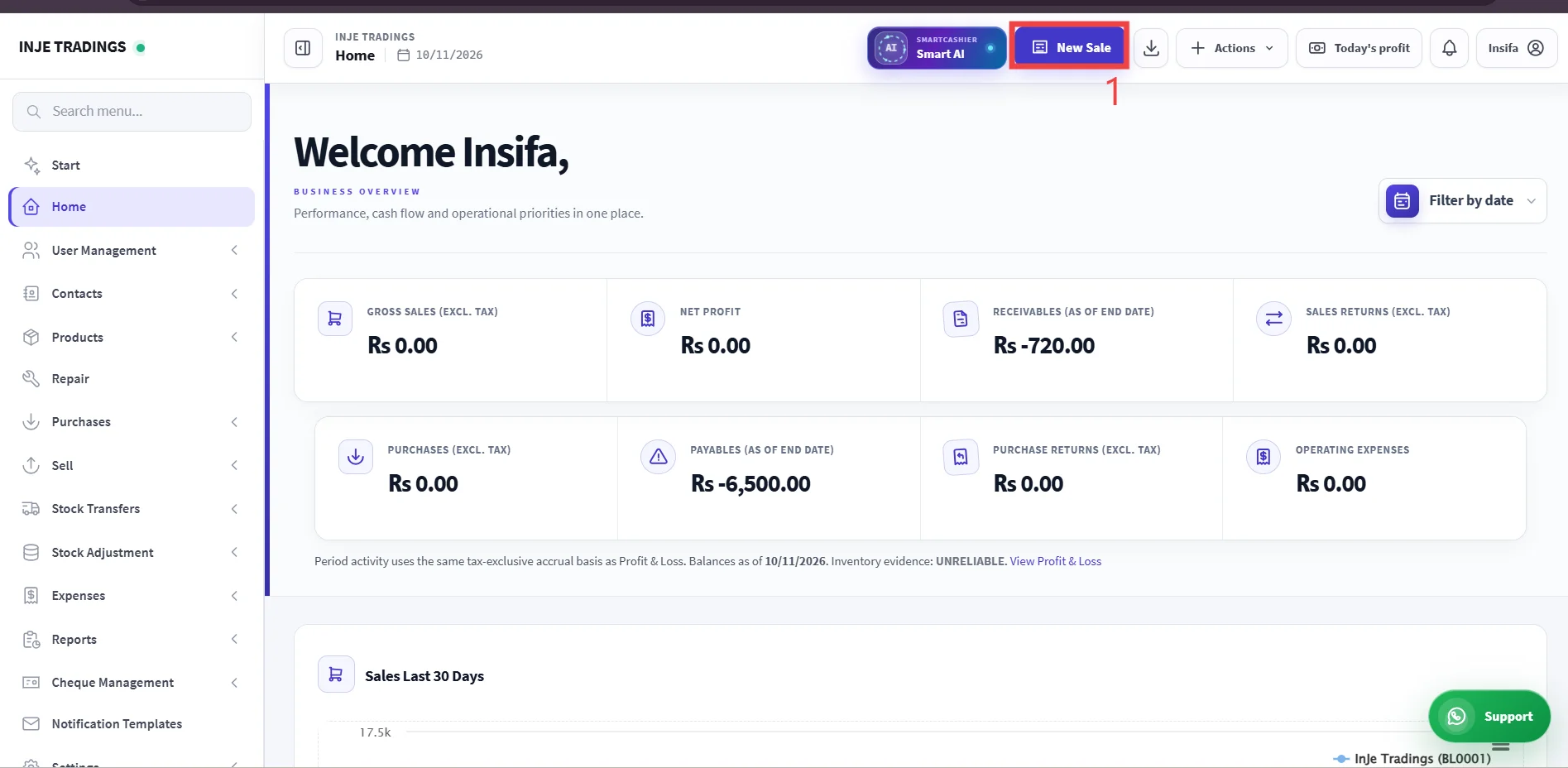
Step 1: Click New sale on the header to go to POS Terminal.
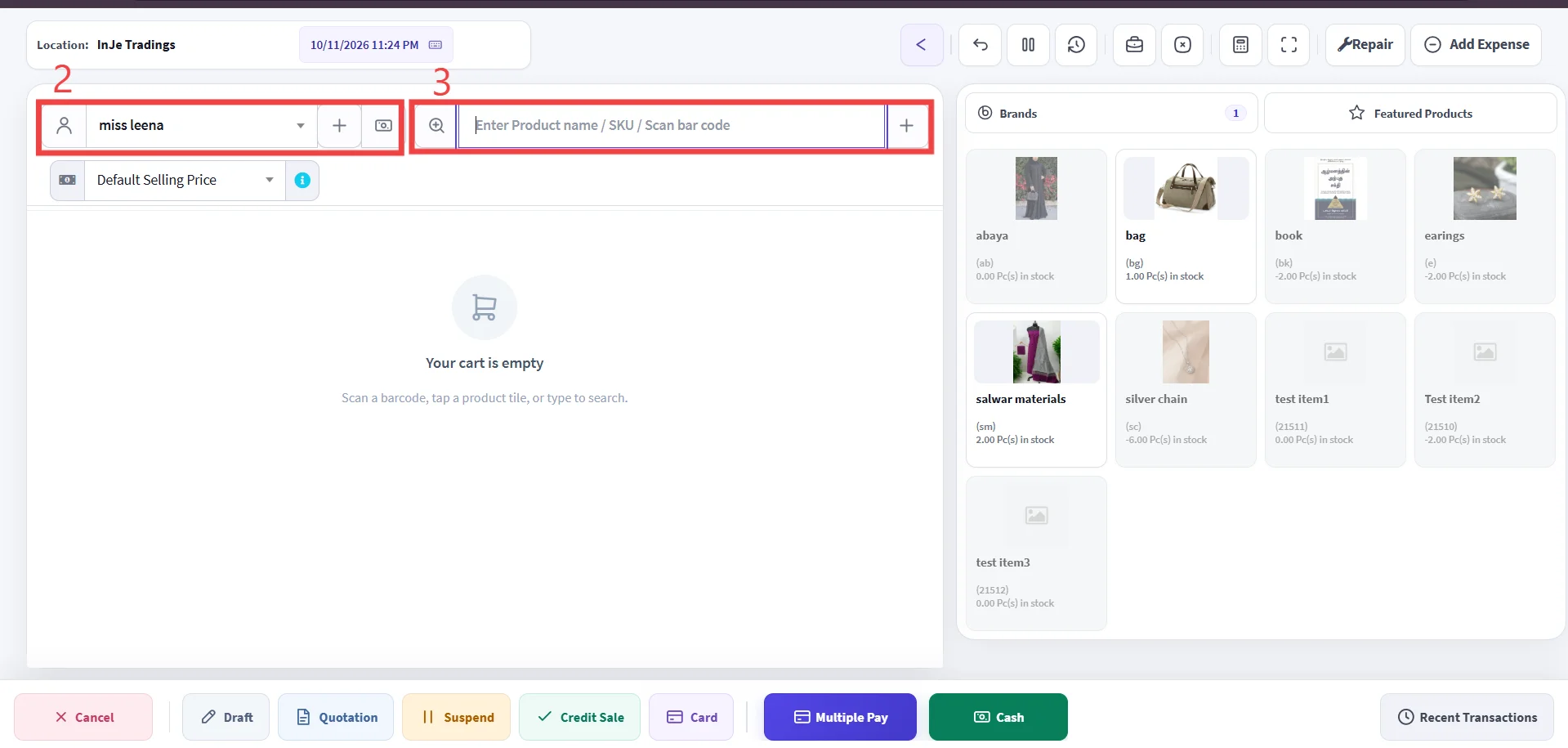
Step 2: Select customer.
Step 3: Enter the Product
Use product name or SKU or scan barcode to enter the product
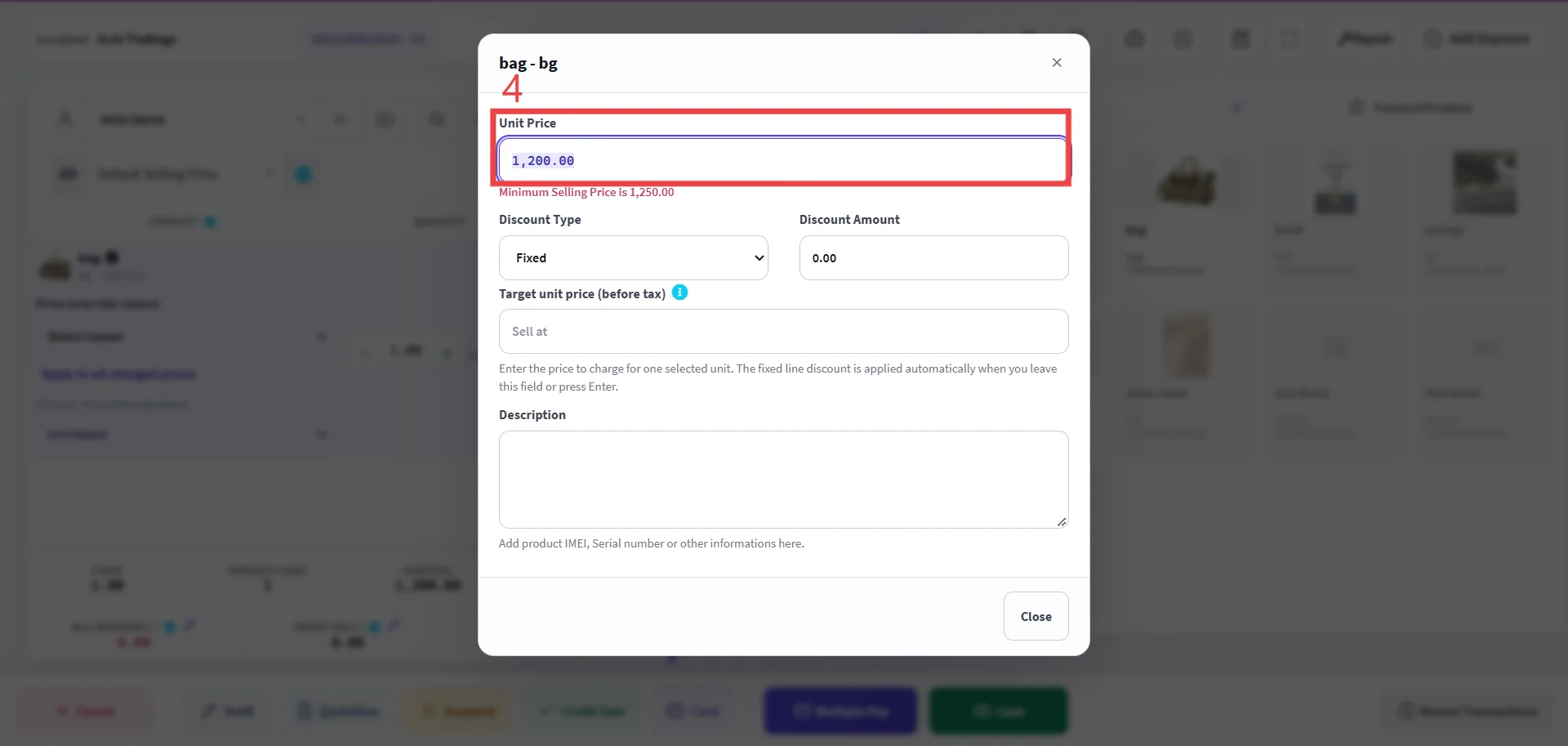
Step 4 : Change unit price.
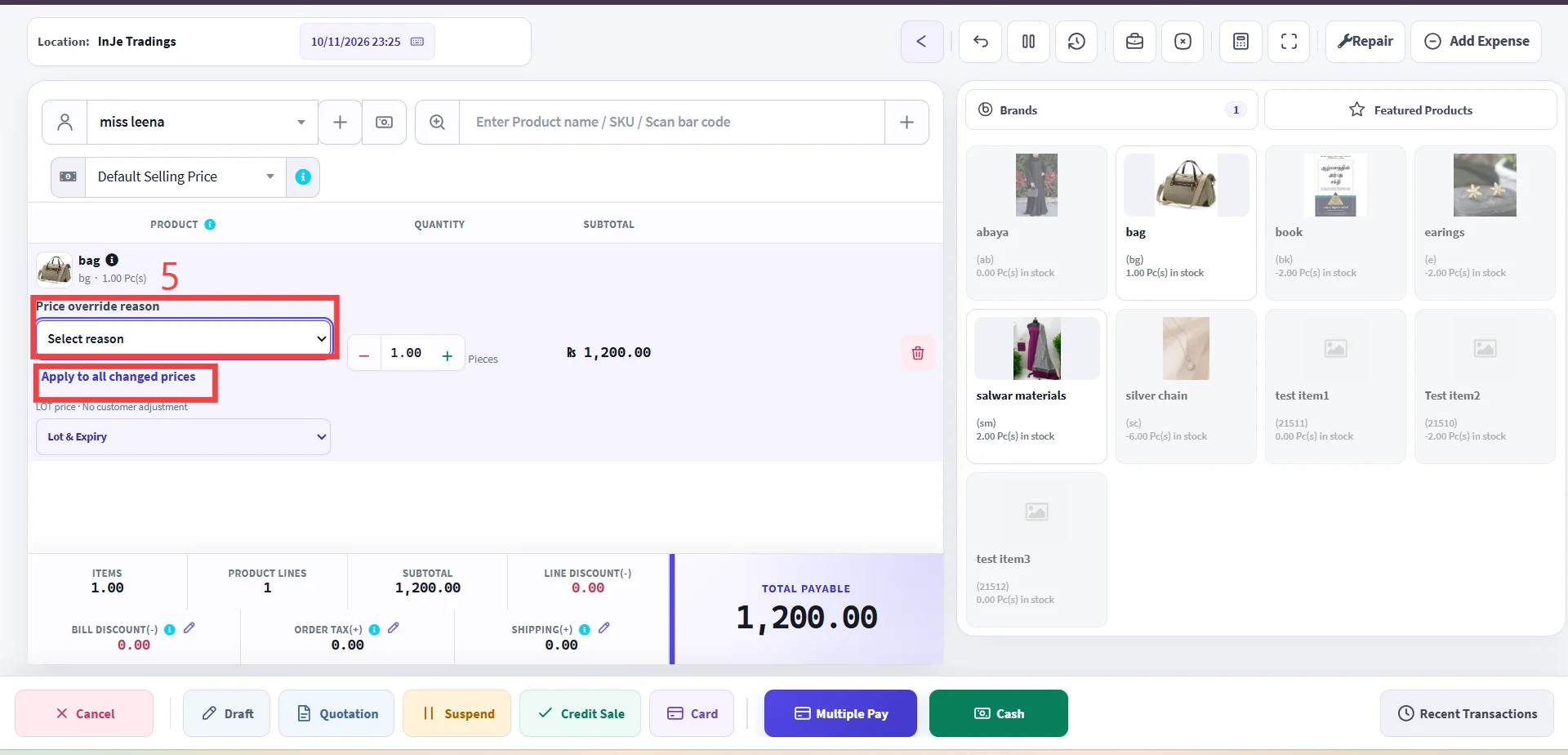
Step 5 : Select reason from dropdown list.
Important
Click "Apply to all changed prices" if you change multiple product's unit price with same reason.
Important
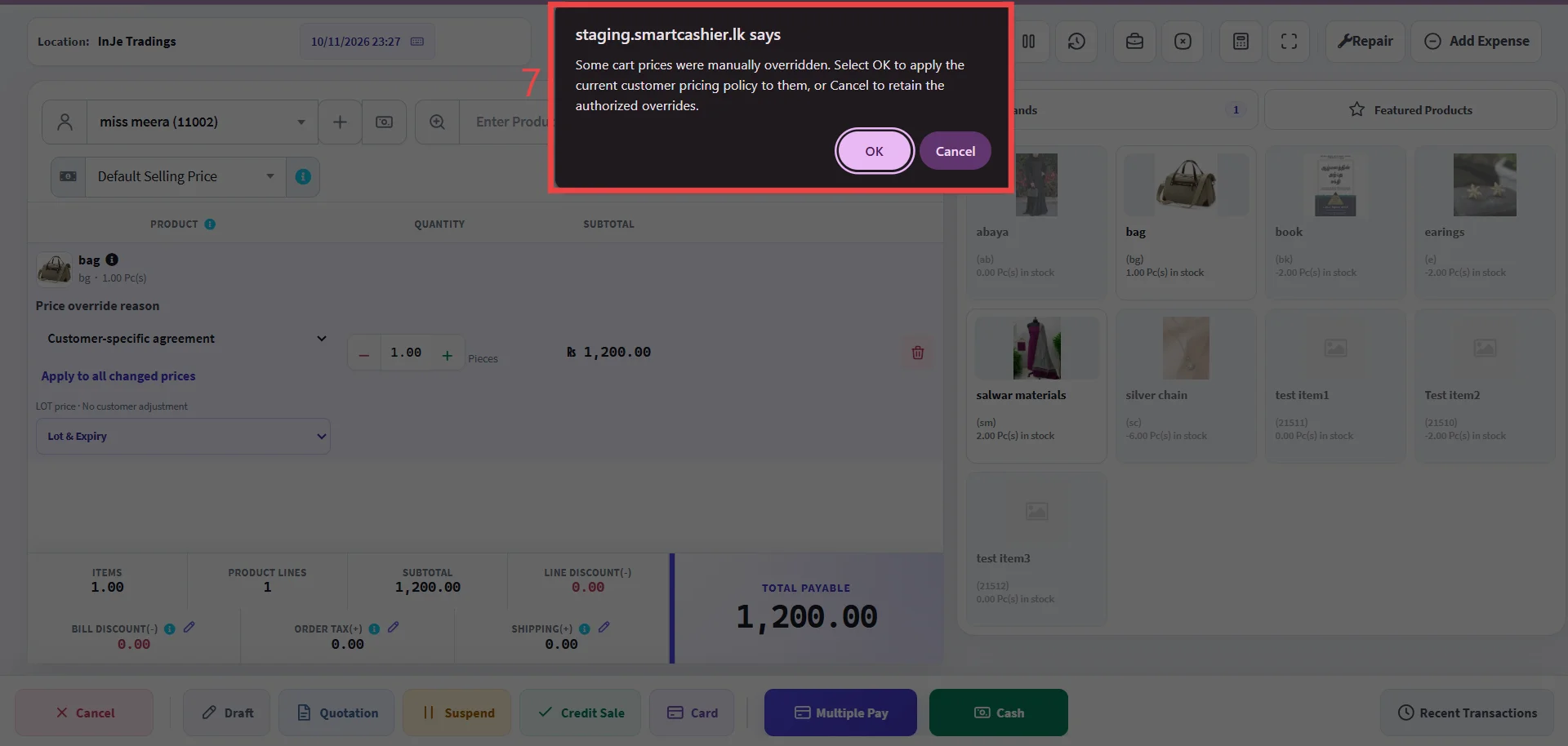
If you try to change the customer after change the unit price, respond to the system alert popup based on your decision.
-
Click OK: Resets item prices in the cart to match the new customer's assigned pricing policy (standard/discounted rate).
-
Click Cancel: Keep the manual price changes you entered previously and applies them to the newly selected customer.