Purpose
To guide users through the process of creating and recording a new purchase accurately.
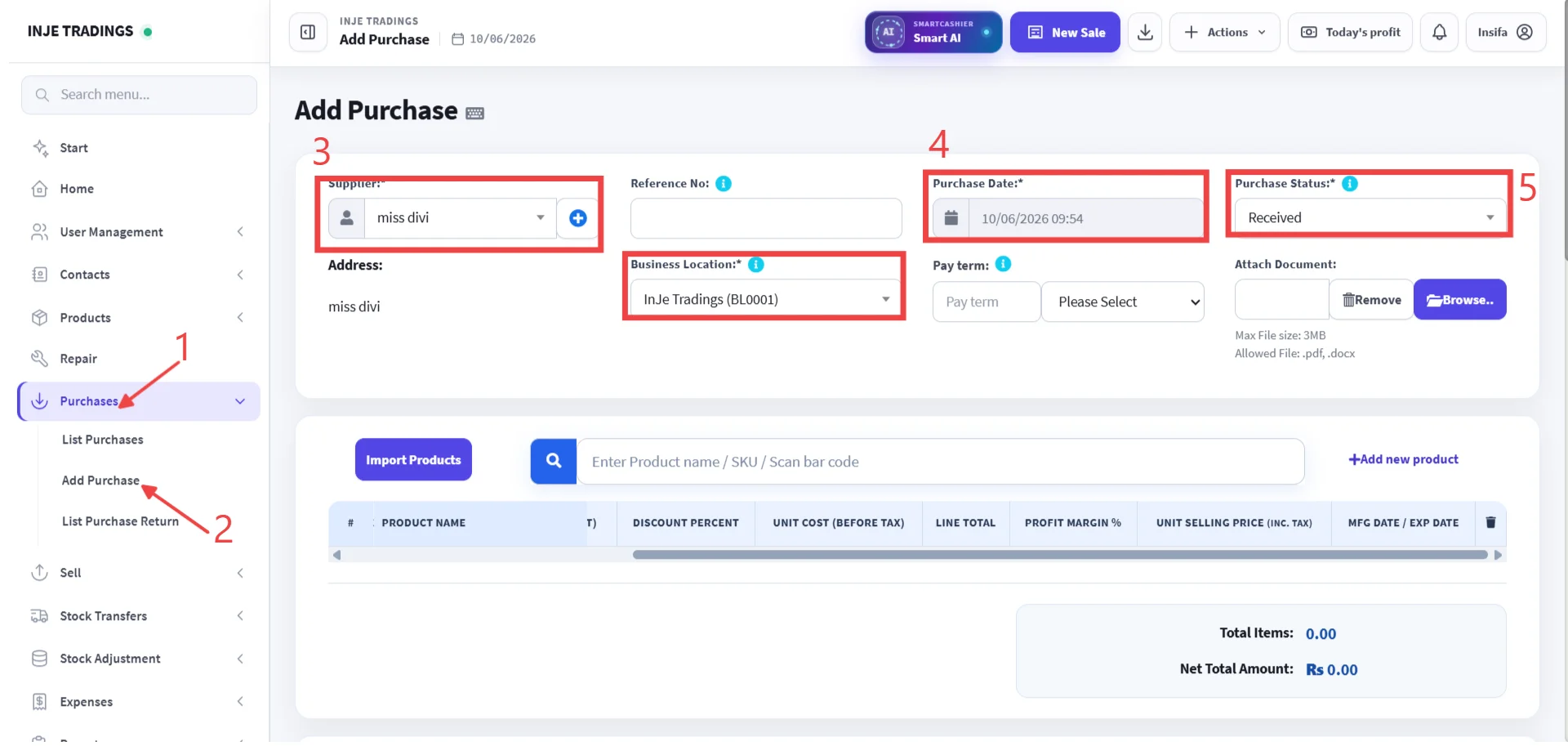
Step 1: Go to the purchase.
Step 2: Click Add purchase.
Step 3: Enter the supplier name.
Step 4: Enter the purchase date.
Step 5: Select purchase status.
Important
If you manage multiple branches or stores, select the required store from the Business Location dropdown list.
Pro Tip
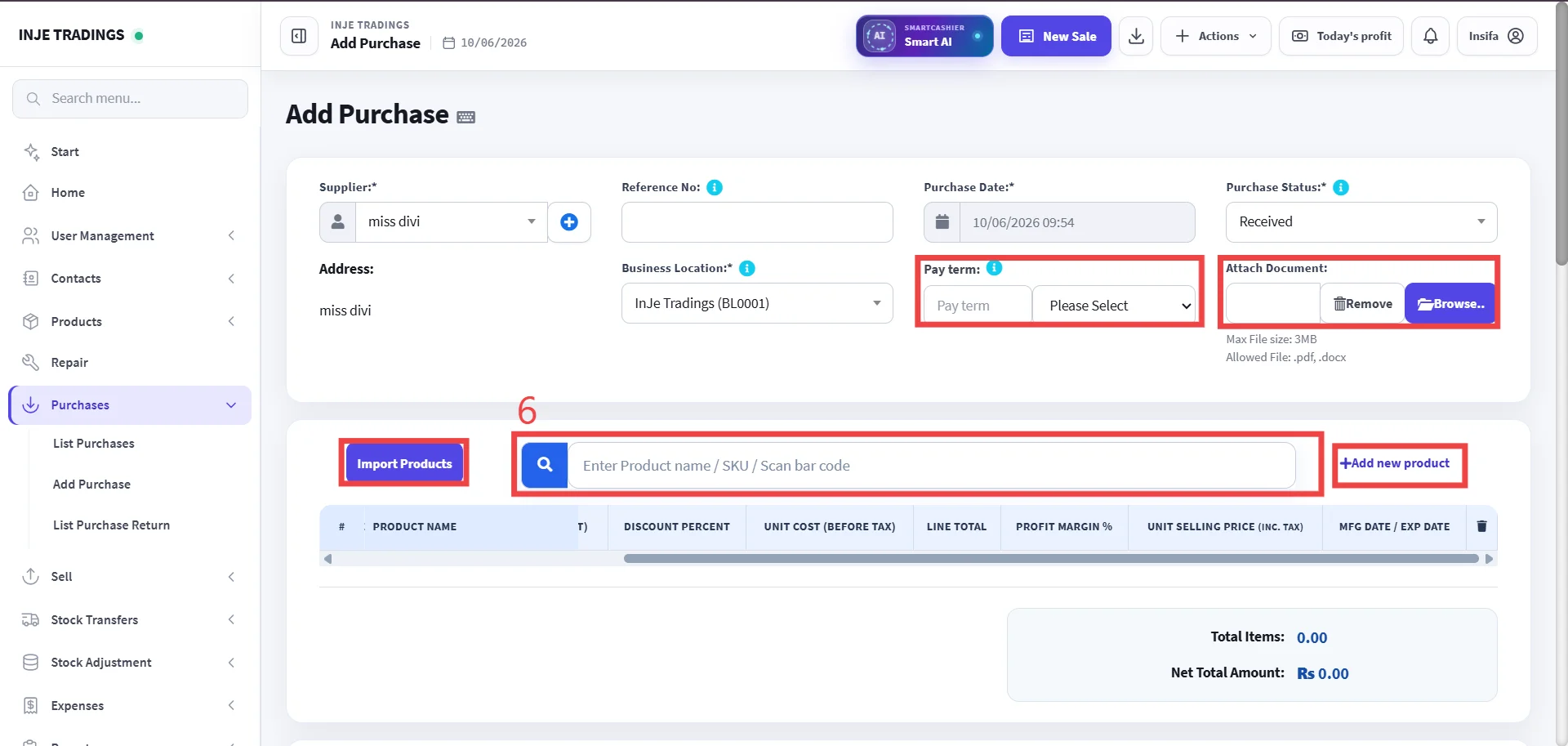
Use Pay Term to select the payment period in months or days. Use Attach Document to add any purchase-related documents.
Step 6: Enter product name or SKU or scan Bar code.
- If you want to add a new product, use the "+ Add New Product" option.
- To add products in bulk, use the Import Product option.
Important
Before add purchase details for product verify that you have selected the correct product.
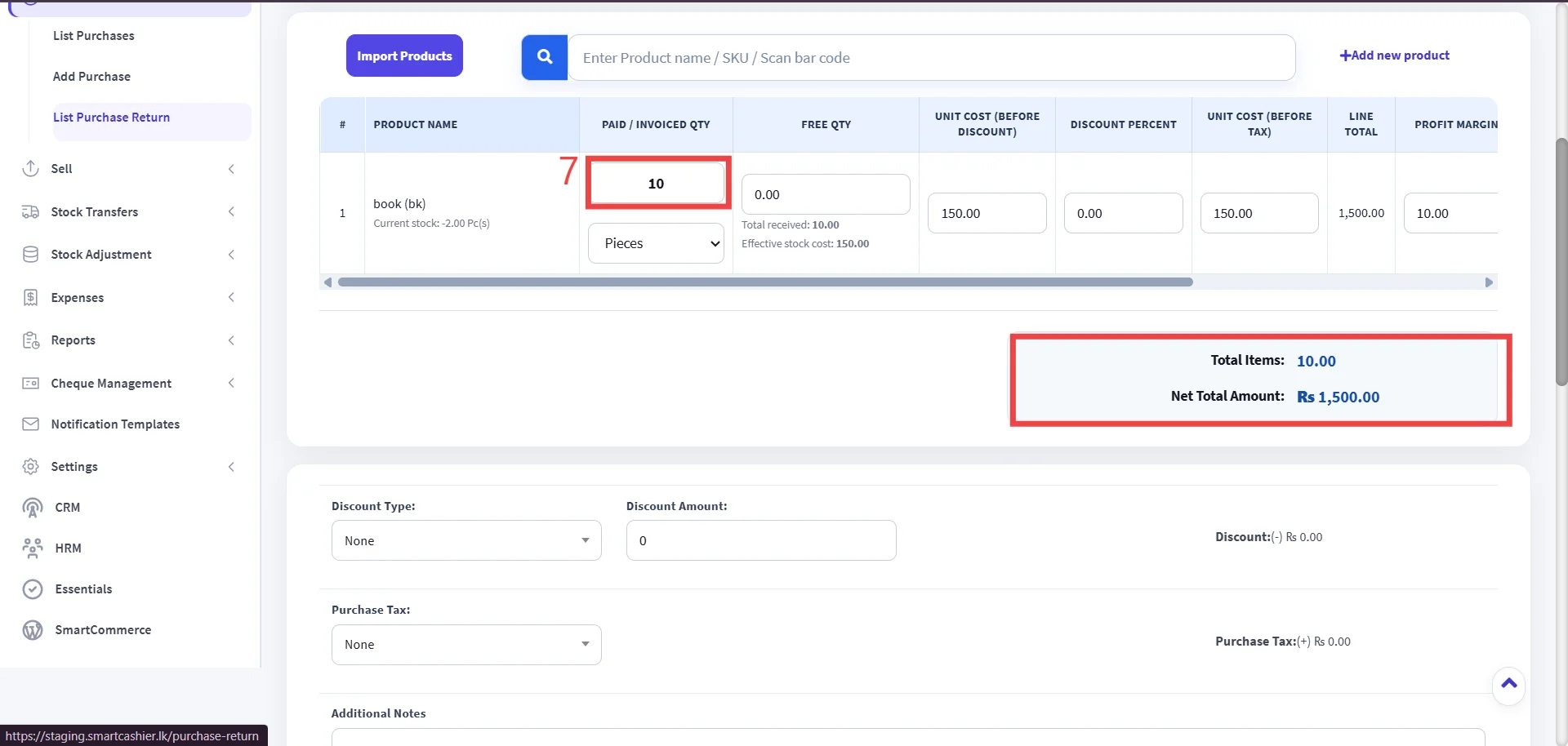
Step 7: Enter Product Purchase Details.
Enter the product purchase quantity, required price related and other necessary information.
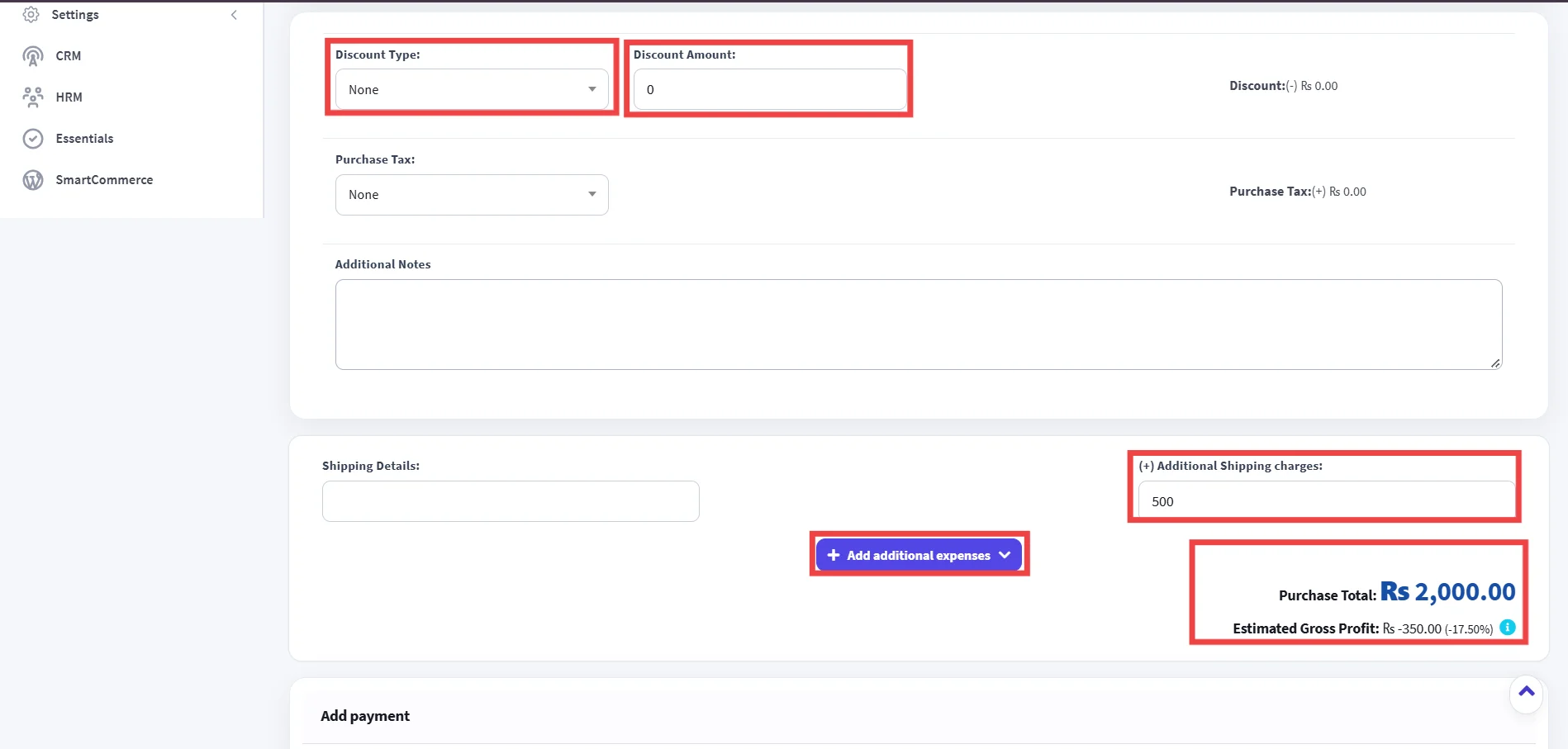
Important
After entering all amounts, verify that the total purchase amount is correct.
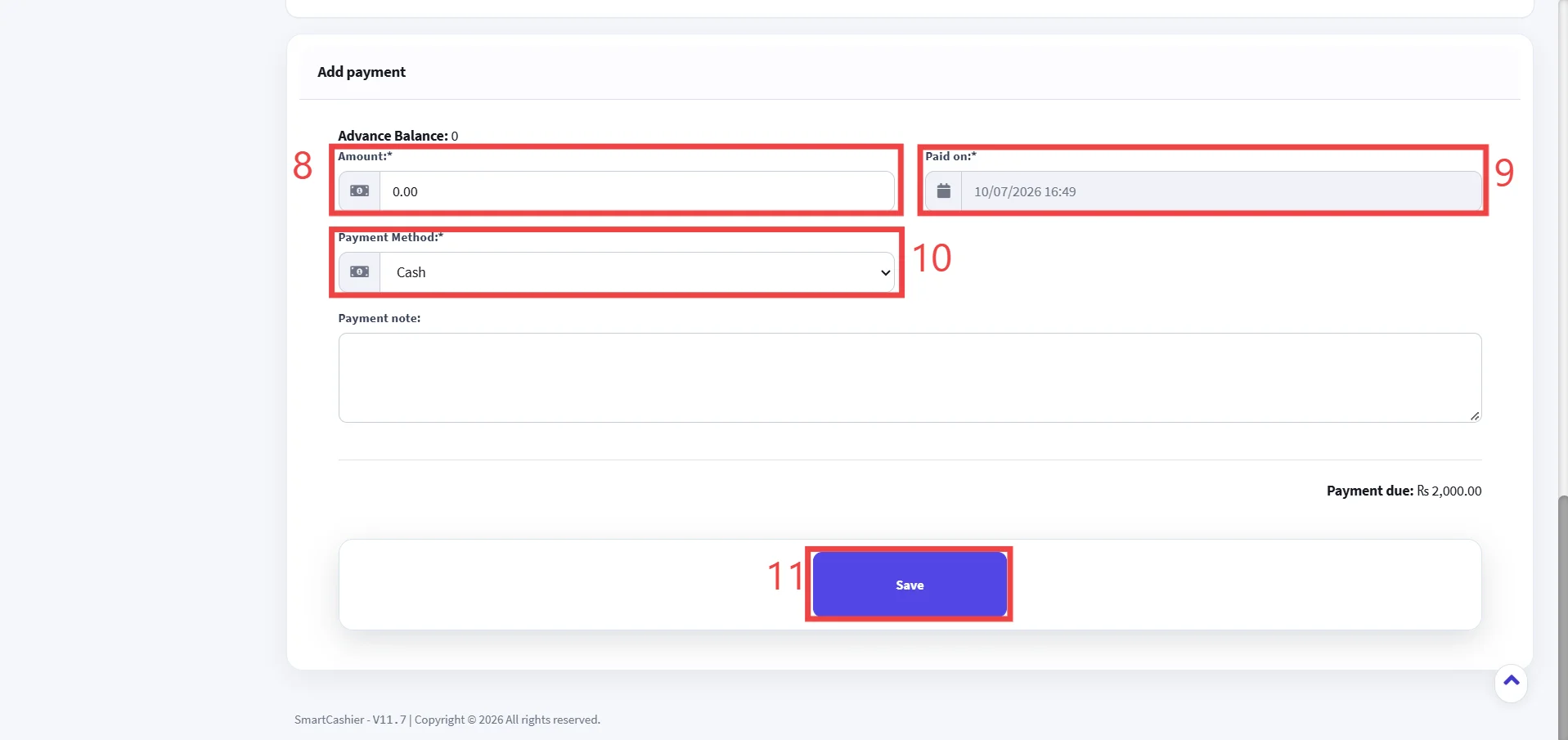
Step 8: Enter payment amount.
Step 9: Enter payment date.
Step 10: Select payment method.
Step 11: Click save.